After running out of battery in Kubuntu 10.04 my laptop didn't shutdown propertly and lost all network connectivity (Wired and Wireless). The KNetworkManager in the taskbar told me that it was disabled and when I ran this command:
sudo lshw -C network
All the network interfaces appear disabled.
The solution was stopping the network manager:
sudo service network-manager stop
and removing the file that store the state of the network manager:
sudo rm /var/lib/NetworkManager/NetworkManager.state
After that reboot the pc and the network manager should work again.
Mostrando entradas con la etiqueta kubuntu. Mostrar todas las entradas
Mostrando entradas con la etiqueta kubuntu. Mostrar todas las entradas
martes, 18 de mayo de 2010

jueves, 13 de mayo de 2010
MySQL Workbench in Kubuntu Lucid Lynx 10.04 LTS
After the install of MySql workbench 5.2 RC using the deb package provided for ubuntu 10.04 in KDE everything works well and nice but when you try to create a connection to a database and storing the password of the connection you will get an error about workbench not being able to access the gnome keyring.
After some research we discovered that we already have the gnome-keyring package installed but by default this daemon doesn't start automatically when you are running KDE.
The solution is really simple, just run in konsole this command:
gnome-keyring-daemon
After that try again to store the password in workbech mysql connection and everything should work smooth and well.
To avoid running this command every time you want to launch workbench we use this aproach:
In KDE menu icon right click and select KDE menu editor, go to programming tab and select mysql workbench.
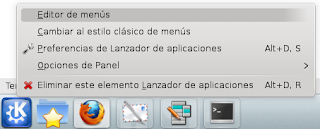
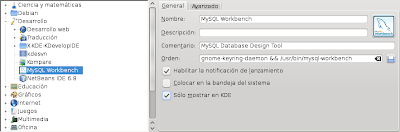
Change this line:
/usr/bin/mysql-workbench
for this one:
gnome-keyring-daemon && /usr/bin/mysql-workbench
done, every time you execute workbench you will start gnome keyring daemon.
After some research we discovered that we already have the gnome-keyring package installed but by default this daemon doesn't start automatically when you are running KDE.
The solution is really simple, just run in konsole this command:
gnome-keyring-daemon
After that try again to store the password in workbech mysql connection and everything should work smooth and well.
To avoid running this command every time you want to launch workbench we use this aproach:
In KDE menu icon right click and select KDE menu editor, go to programming tab and select mysql workbench.


Change this line:
/usr/bin/mysql-workbench
for this one:
gnome-keyring-daemon && /usr/bin/mysql-workbench
done, every time you execute workbench you will start gnome keyring daemon.
Suscribirse a:
Entradas (Atom)